


Instead of repeatedly carrying the same paperwork between appointments, check whether your chiropractor can access My Health Record and agree how relevant documents will be shared. Chiropractic visits do not automatically sync with My Health Record, and MyChiro patients should confirm the clinic’s current connection and document-sharing arrangements before relying on them.
- Chiropractor My Health Record access depends on provider registration, technical access and your record’s access controls.
- MyChiro patients should confirm record-sharing arrangements rather than assume chiropractic appointment notes upload automatically.
- My Health Record supplements a clinic’s own records; it does not replace them.
- Check document dates, authors and access history, and arrange direct sharing when necessary.
Why this matters
My Health Record is Australia’s national digital health record system. It brings together health information contributed by participating healthcare providers, government sources and individuals, but it is not a complete copy of every provider’s clinical file.
That distinction matters when you change providers or want your chiropractor and GP to exchange information. An appointment entry, a claim and a clinical report are different records; finding one does not establish that the others were uploaded.
For chiropractic patients at MyChiro, the practical starting point is a record-sharing enquiry, not an assumption of automatic synchronisation. Ask what the clinic can access, what it can contribute and what requires another sharing method.
For your 2026 setup, use the Australian Digital Health Agency’s My Health Record consumer guidance for account access, privacy controls and document management. Services Australia provides the corresponding guidance for linking My Health Record through myGov. These are administrative reference sources, not evidence of any individual clinic’s connection.
Before you start
- Account access: Have access to your own myGov account and a linked My Health Record, if you choose to use the online service. Follow Services Australia’s identity-verification process if linking is incomplete; do not give clinic staff your login details.
- Clinic confirmation: Ask whether the clinic is registered and connected to My Health Record, whether authorised staff can view relevant information, and whether its system supports contributing an appropriate document.
- The easily missed limitation: Viewing and uploading are separate capabilities. A clinic’s ability to read a report does not mean its appointment notes will upload, and a patient cannot use My Health Record as a general-purpose PDF storage folder.
You do not need to open your personal account on a reception computer to establish a provider connection. Your consumer login and a healthcare organisation’s authorised access are separate routes.
Your account and access preferences
Check your own record
- Sign in to myGov using your usual account-security process. Select the linked My Health Record service; if it is not linked, use Services Australia’s linking instructions.
- Open your record and check that you are viewing the correct person’s information. Take particular care if you also have authorised access to someone else’s record.
- Review the documents already present. Note each relevant document’s author, date and type rather than assuming the newest visible entry summarises everything.
- Review your healthcare-provider access settings using the Australian Digital Health Agency’s current instructions. Decide whether you want additional restrictions before discussing access with the clinic.
Expected result: You can access your own record and explain any restrictions relevant to the proposed sharing arrangement. Completing these steps does not connect a chiropractor’s practice system.
Do not change privacy settings simply to make a missing document appear. First establish whether that document was ever uploaded and whether it belongs in My Health Record.
Keep account security separate from provider access
Your myGov password, authentication codes and account-recovery details belong to you. An authorised healthcare provider uses its own approved access arrangements, not your personal credentials.
If you set a record access code, discuss the applicable access process with the provider. A record access code is not your myGov password, and the two should never be substituted for each other.
For a 2026 privacy check, review both who can access the record and which documents you have restricted. Document restrictions and organisation-level access settings address different questions.
The clinic’s connection and sharing arrangements
Confirm the connection before requesting an upload
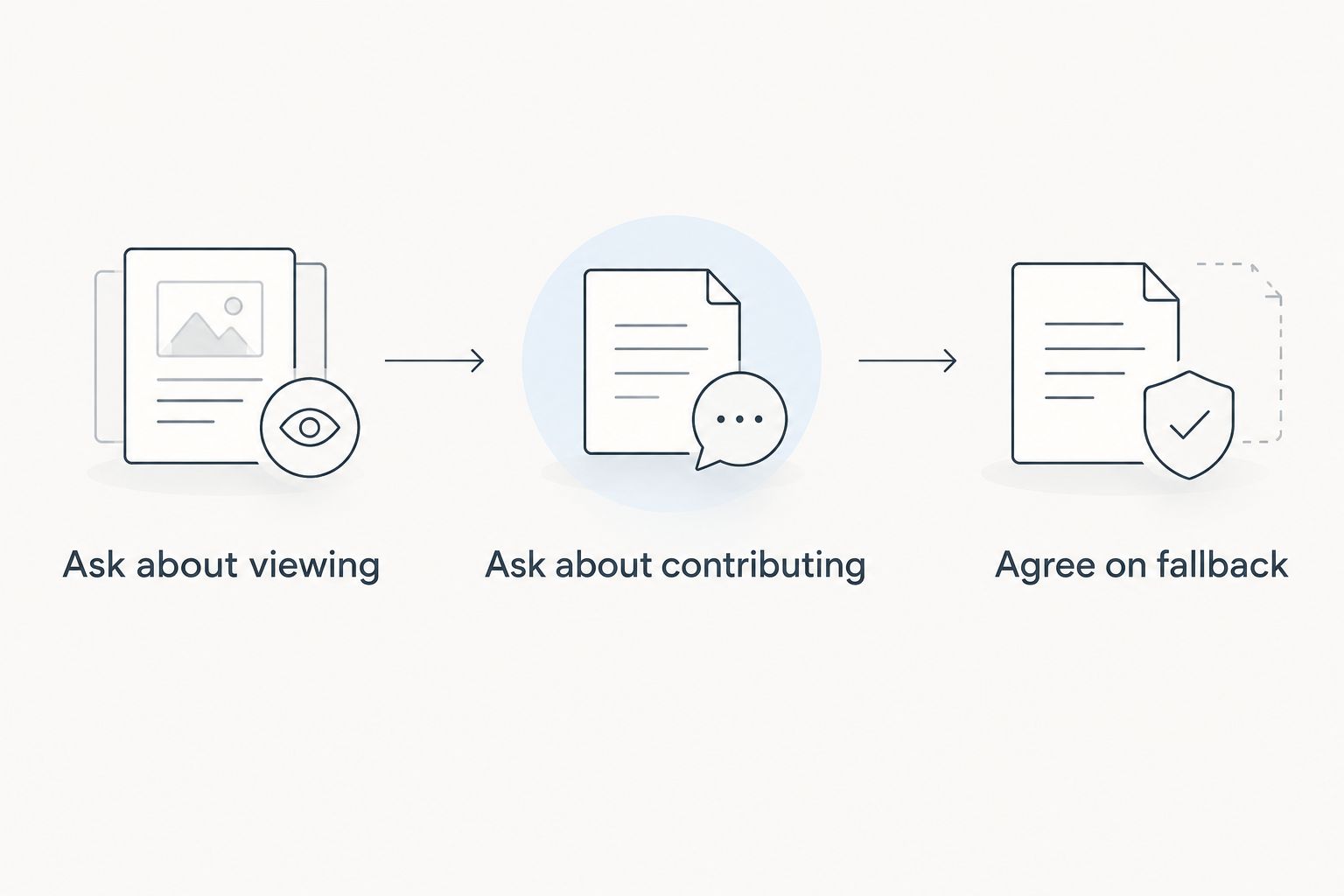
- Ask about viewing. Establish whether authorised clinicians at the practice can access My Health Record for healthcare purposes, subject to applicable rules and your controls.
- Ask about contributing. Confirm whether the clinic can upload a suitable clinical document through its available system. Do not assume that viewing access includes document creation or upload support.
- Identify the document. Specify whether you are discussing an existing imaging report, a consultation summary, correspondence or another item. Different document types have different sources and contribution arrangements.
- Agree on a fallback. If My Health Record sharing is unavailable, ask about an appropriate direct transfer to the intended healthcare provider, with the required authority and privacy safeguards.
Expected result: You know whether the proposed task is supported and who is responsible for it. An answer such as “we use digital records” is not confirmation of My Health Record connectivity.
Ask these 3 questions before relying on a transfer: can the clinic view the record, can it contribute the proposed document, and how will the receiving provider obtain it if not?
Use MyChiro’s contact page to ask about current administrative arrangements. Avoid sending detailed health information through a general enquiry form unless the clinic has specifically directed you to use it for that purpose.
Choose the appropriate sharing route
The following comparison separates the main routes. None guarantees that a particular clinician has read the information.
| Sharing route | Use for | Advantage | Limitation |
|---|---|---|---|
| My Health Record | Making supported documents accessible to authorised participating providers | Information can be available beyond the original practice | Only contributed information appears; access controls and provider capability matter |
| Direct provider correspondence | Sending a specific report or question to a named clinician | Gives the communication a defined recipient and purpose | Requires correct recipient details and an agreed transfer method |
| Your own document copy | Bringing an existing report to a consultation | Lets you identify the exact document you want discussed | Does not automatically update either provider’s system or My Health Record |
Choose the route for the document and recipient, not for the appearance of a connected system. Direct correspondence remains a separate task even when both practices use My Health Record.
Document selection and verification
Agree what needs to be shared
- Name the purpose. Explain which provider needs the information and what administrative task you are arranging. Avoid requesting a full-file transfer when a specific document is the intended item.
- Identify the source. For an existing report, establish which organisation produced it. That organisation may need to supply the original or address a missing upload.
- Check the proposed content. Ask the contributing provider which document type it intends to use and what information it contains. My Health Record does not automatically reproduce every consultation note.
- Confirm the destination. Distinguish an upload to My Health Record from correspondence sent directly to a GP or another practice. Ask explicitly if both are required.
Expected result: The sender, recipient, document and transfer route are clear. You are not relying on the word “sync” to cover several different actions.
For documents created during 2026, retain the actual consultation and document dates. A later upload date does not change when the consultation occurred.
Check that the intended document arrived
- Sign in through your own account after the provider confirms contribution. Look for the document by its type, author and date rather than only by the clinic’s name.
- Check 2 dates where displayed: the clinical document date and the upload date. They can differ, so use both when asking about a missing or duplicate item.
- Review the document’s source and contents. If information appears incorrect, contact the organisation that created it rather than trying to rewrite a provider-authored document yourself.
- If a named clinician needs the information, confirm the receiving practice has the required document. An upload is not confirmation that the clinician has opened or reviewed it.
Expected result: You can identify the actual shared document, not merely an appointment, billing entry or verbal assurance.
Keep a short administrative note of what was requested and who confirmed the transfer. Do not include passwords or access codes in that note.
When another provider adds a new report
A related workflow starts outside the chiropractic clinic: another participating provider contributes a report that you want discussed at a later consultation.
- Open your record and identify the new document’s author, type and date.
- Tell the chiropractor which document you mean and ask whether authorised access is available under your current settings.
- If access is unavailable, ask the source provider about supplying the report through an appropriate alternative route.
- Confirm receipt before relying on the report being available for discussion.
Expected result: The chiropractor knows which existing document you want considered, without any assumption that My Health Record automatically pushes every update into the clinic’s local file.
Your 2026 record-sharing checklist should distinguish 3 confirmations: the document exists, the receiving provider can access it, and the relevant clinician has been told about it. These are separate checks, not a promise of clinical review.
Troubleshooting
Your visit does not appear
Check whether a clinical document was actually contributed. Attendance alone does not establish that an upload occurred. Ask the practice what was created, where it was sent and whether contribution was completed.
The clinic can view information but cannot upload
Treat this as a separate capability question. Ask whether the proposed document is supported by the clinic’s system. If not, agree on direct correspondence or another appropriate transfer rather than repeatedly changing your account settings.
A report is missing or has incorrect details
Contact the originating organisation with the document type and relevant dates. My Health Record is not necessarily a complete record of past care. For an error in provider-authored content, ask the author about correction procedures; hiding or removing a document is not the same as correcting its source.
Your access settings prevent the expected viewing
Review your controls deliberately, not under pressure. Use the Australian Digital Health Agency’s instructions to understand any record or document restrictions. Discuss another transfer method if you do not want to change those settings.
The access history contains an unfamiliar organisation
Check the entry before drawing conclusions. Access history can identify a healthcare organisation rather than the individual name you expected. Contact the organisation or the My Health Record support service if you cannot account for the access, and use the official complaints process for unresolved concerns.
Customise your workflow
Keep a brief record-sharing checklist with the document name, source, intended recipient and confirmation status. This is an administrative aid, not a replacement clinical history.
If several providers are involved, nominate who will send each item. Avoid assuming that a GP, chiropractor and imaging provider have all received the same information because one document appears in your account.
Review access preferences when your circumstances or preferences change. There is no need to arrange an additional chiropractic appointment solely to check a digital document transfer; ask about the appropriate administrative channel.
FAQ
Do chiropractic visits automatically sync with My Health Record?
No. A chiropractic appointment does not automatically become a clinical document in My Health Record. Contribution depends on the provider’s connection, system capabilities and the document involved.
Can my chiropractor see My Health Record?
An authorised chiropractor at a participating, connected healthcare organisation can access My Health Record for permitted healthcare purposes, subject to applicable rules and access controls. Ask the clinic about its current arrangements rather than assuming access is available.
Does MyChiro upload appointment notes to My Health Record?
Confirm MyChiro’s current document-sharing arrangements directly with the clinic. Do not assume that local appointment notes are uploaded or that viewing access includes contribution capability.
Do I give the chiropractor my myGov password?
No. Keep your myGov password and authentication codes private. Healthcare-provider access uses separate authorised arrangements, and a record access code is different from your account password.
Can I upload a PDF of my chiropractic notes myself?
My Health Record is not a general-purpose PDF upload folder for consumers. Ask the authoring provider about supported contribution or an appropriate direct transfer to the intended recipient.
Does a Medicare claim mean my consultation notes were uploaded?
No. Medicare information and provider-authored clinical documents are different record types. Check for the specific document rather than using a claim entry as proof of contribution.
Can I control who accesses my record?
My Health Record provides consumer access controls, including options affecting healthcare-organisation access and document visibility. Consult the Australian Digital Health Agency’s guidance for the scope and exceptions that apply.
How do I correct an error in an uploaded report?
Contact the healthcare organisation that authored the report. Ask about its correction process, because changing visibility in My Health Record does not correct the originating provider’s clinical file.
One last thing
A document being available is not the same as a document being read. When information matters to an upcoming consultation, identify it directly to the receiving clinician and confirm that the correct version is available.
For your 2026 records routine, replace “everything should sync” with a specific question: which document, from which provider, through which route?
Related guides
- How to prepare for your first chiropractor appointment
- How chiropractors coordinate with GPs on imaging referrals
- How to combine chiropractic care with physiotherapy in one plan