


For a desk, start by comparing height-adjustable phone stands; for a crowded worktop, consider a clamp-mounted holder; for travel, consider a folding stand. This 2026 guide compares phone and tablet stand designs by practical fit—not by claims that an accessory prevents tech neck or changes a medical condition.
- Height-adjustable phone stands suit desk viewing when their adjustment range matches your seated position.
- Clamp-mounted holders free desk space but need a compatible, secure mounting surface.
- Folding stands suit travel; tablet typing usually needs separate consideration of screen and keyboard positions.
- Mychiro’s phone and tablet stand guide compares practical features, not clinical outcomes.
Why this matters
A phone stand changes where your screen sits. It does not establish why your neck hurts, and a comfortable-looking setup is not proof that an accessory prevents pain.
Start with the task. Watching a video, reading a recipe and typing a document place different demands on the same device. A stand that suits hands-free viewing can be awkward when you need to touch the screen repeatedly.
Mychiro is a chiropractic clinic and wellness centre in Bondi Junction, Sydney. This Mychiro phone stand guide is for comparing equipment, not choosing care for neck symptoms. For broader workstation considerations, see the guide to ergonomic setups for shift workers.
What makes a useful phone or tablet stand?
Compare these features before choosing a design:
- Height adjustment: Check whether the screen reaches your preferred viewing position on your actual desk. An adjustable hinge does not necessarily provide adjustable height.
- Independent tilt: Look for a way to change the screen angle without losing the height you selected.
- Device fit: Check the holder against your device with its usual case attached. Buttons, cameras and charging ports should remain accessible.
- Stability: Check what happens when you tap, scroll, rotate the device or connect a cable. Hands-free viewing and touchscreen use are different tests.
- Workspace fit: Consider the base, clamp, arm and cable together. The stand should leave room for the task you need to complete.
- Task compatibility: Decide whether you need viewing support, frequent touchscreen access or a separate keyboard. Choose around that distinction.
For your 2026 shortlist, compare adjustment range rather than relying on an ergonomic label. The useful question is whether the stand fits your device, furniture and intended activity.
Phone and tablet stands at a glance
The order below starts with a general desk option, then separates designs by use case. These are stand categories, not rankings of individual products.
| Stand design | Suitable use case | Feature to check | Main limitation |
|---|---|---|---|
| Height-adjustable desktop stand | Regular desk viewing | Separate height and tilt adjustments | Base occupies desk space |
| Clamp-mounted holder | A crowded desk or worktop | Compatible clamp and adjustable arm | Requires a suitable mounting edge |
| Folding travel stand | Temporary setups away from home | Stable hinge and folded shape | Check whether it provides enough height |
| Freestanding floor holder | Hands-free viewing beside a chair | Base position and reachable controls | Takes up floor space |
| Tablet stand with separate keyboard | Longer typing tasks | Screen support independent of keyboard | More equipment to arrange and carry |
1. Height-adjustable desktop stand: for regular desk viewing
A height-adjustable desktop stand holds your phone above its base and lets you change its position. Choose this category when your phone stays beside your main workspace for calls, reference material or reading.
Check the movement yourself. Some designs change only the viewing angle, while others let you raise the holder independently. Look at the screen position with your usual chair and desk, rather than judging the stand in isolation.
Suitable use case: A regular desk where you want a dedicated position for your phone.
Height-adjustable desktop stand pros:
- You can position it without attaching hardware to furniture.
- Height and tilt can be considered separately when the design provides both.
- The stand can move between suitable flat surfaces.
Height-adjustable desktop stand cons:
- Its base uses space beside your keyboard or paperwork.
- A tall setting needs a stability check during touchscreen use.
Before choosing, check whether the charging connector fits beneath the holder. Rotate the phone into landscape orientation and check again; access can change with orientation.
Verdict: Buy only if the adjustment range and stability suit your desk.
2. Clamp-mounted holder: for a crowded worktop
A clamp-mounted holder attaches to a furniture edge and supports the device on an arm. Consider this category when a conventional base would occupy space needed for paperwork, cooking preparation or other equipment.
The mounting point matters as much as the holder. Read the mounting instructions and check the surface material, edge shape and permitted thickness before attaching anything. Do not assume a clamp suits glass, a rounded edge or a lightweight shelf.
Suitable use case: A desk or worktop with a compatible edge and limited spare surface area.
Clamp-mounted holder pros:
- The device holder does not need a base on the work surface.
- An adjustable arm offers different placement options within its stated range.
- You can check cable routing alongside the arm before settling on a position.
Clamp-mounted holder cons:
- Furniture compatibility limits where you can install it.
- You need to check movement when tapping the screen or repositioning the arm.
Place the mounting hardware where it will not obstruct drawers, chair movement or your usual working area. Keep the device clear of the work itself.
Verdict: Buy only after confirming furniture and device compatibility.
3. Folding travel stand: for temporary setups
A folding stand packs away between uses. It suits a temporary desk, a shared table or a bag where a fixed desktop stand would be inconvenient.
Compactness is only part of the decision. Check the opened stand with your actual device, including its case, rather than choosing solely from the folded shape. Confirm that the holder supports the orientation you use most.
Suitable use case: Portable viewing support for changing workspaces.
Folding travel stand pros:
- You can pack it away when the table needs to serve another purpose.
- It offers a dedicated alternative to propping a phone against unrelated objects.
- A suitable design can support portrait or landscape viewing.
Folding travel stand cons:
- Folding capability does not establish how high the screen will sit.
- The hinge and device support need checking in each intended position.
For travel in 2026, check the complete setup rather than the accessory alone. Your destination table, chair and available space will still determine where the screen ends up.
Verdict: Buy for portability only if the opened position also works for you.
4. Freestanding floor holder: for viewing beside a chair
A floor holder supports a phone or tablet from a base beside your seat. Consider it for hands-free reading or viewing when there is no suitable table nearby.
Check the entire footprint. The base, upright support, device arm and charging cable all need space, including when you stand up or move the chair. Follow the manufacturer's assembly and placement instructions.
Suitable use case: Hands-free viewing beside a chair without using a tabletop.
Freestanding floor holder pros:
- It does not require an available table or furniture clamp.
- An adjustable design lets you compare positions beside your usual seat.
- The holder can keep the device separate from items on your lap.
Freestanding floor holder cons:
- Its base occupies floor space and must stay clear of walkways.
- Frequent screen interaction needs a reach and stability check.
Do not choose a floor holder solely because its arm reaches a particular position. Check whether you can access the device controls without repeatedly leaning out of your seat.
Verdict: Buy only if the footprint and device access suit the room.
5. Tablet stand with a separate keyboard: for longer typing tasks
A tablet stand and separate keyboard let you position the display independently of the typing surface. This is a different arrangement from a case that holds the keyboard and screen together.
Check keyboard compatibility with your tablet before choosing either accessory. Then consider where the keyboard, pointing device and screen will sit together. Raising a tablet does not answer the separate question of how you will enter text.
Suitable use case: Tablet-based writing or document work with an independent keyboard.
Tablet stand and separate keyboard pros:
- You can adjust the screen without moving the keyboard with it.
- The keyboard can remain within your chosen working area.
- You can choose portrait or landscape viewing if the holder supports both.
Tablet stand and separate keyboard cons:
- The arrangement requires space for separate components.
- Touchscreen tasks still require reaching towards the display.
Keep your usual workflow in mind. If you alternate constantly between typing and drawing directly on the screen, test both activities before deciding on a stand position.
Verdict: Buy only if separate screen and keyboard positions suit your tasks.
Check the setup before you commit
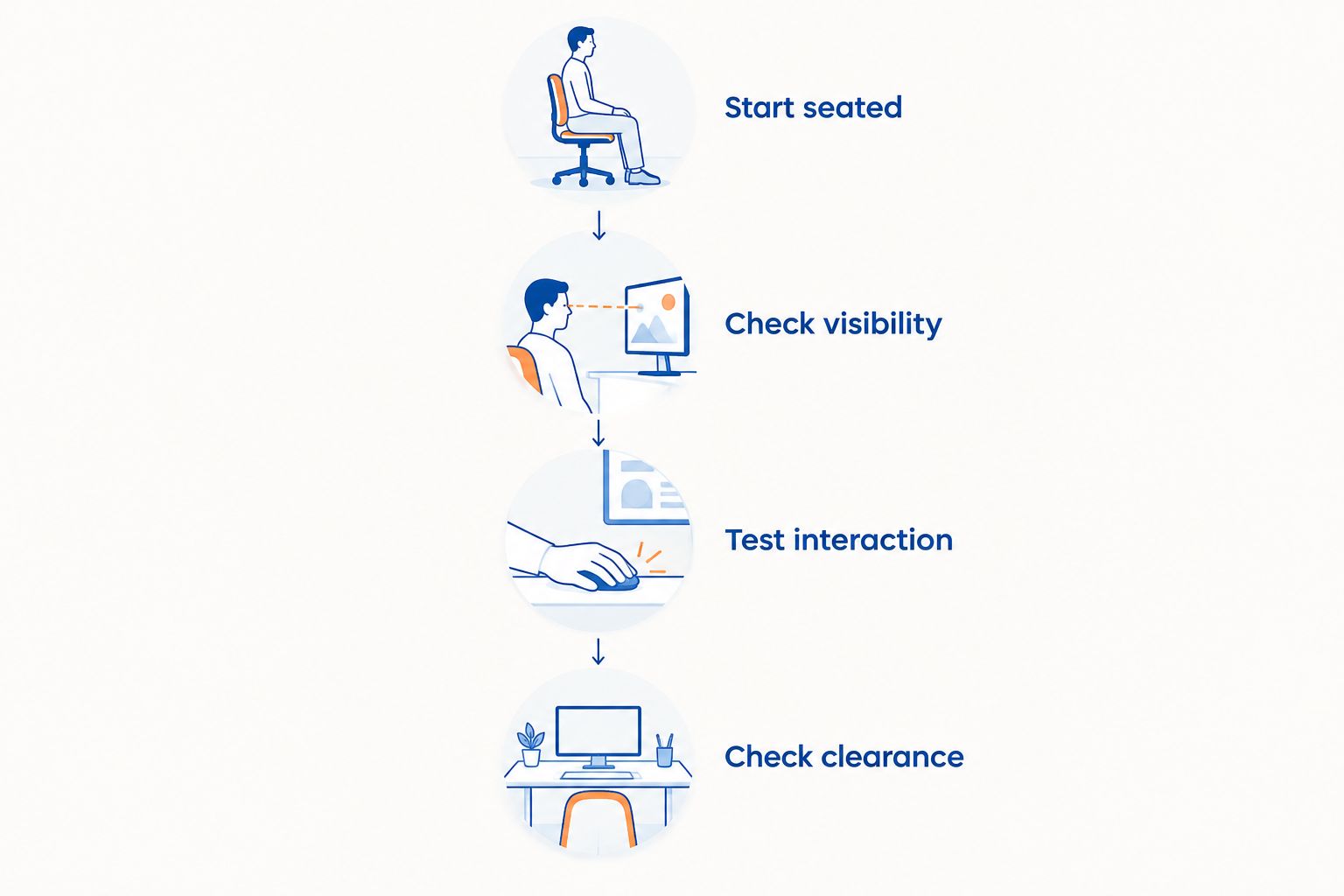
Use this sequence when comparing stands in 2026. It is a practical fit check, not a posture assessment or a clinical test.
Start seated
Sit where you normally use the device. Arrange your chair and work surface first, then bring the screen into a position you can read without deliberately holding yourself in an unfamiliar pose.
Check visibility
Open the material you actually use. Adjust text size and screen angle as needed, and check reflections. Do not judge readability from a home screen if your usual task involves smaller document text.
Test interaction
Tap, scroll and change orientation. If you use a keyboard, test that arrangement too. Check whether you repeatedly move towards the screen or reach around the holder to access controls.
Check clearance
Connect the charging cable and inspect its route. Confirm that the stand does not obstruct your keyboard, paperwork, chair movement or walkway. Recheck the holder whenever you change devices or cases.
How these stand categories are ordered
The comparison prioritises task fit, adjustment, compatibility, stability and the space required. A height-adjustable desktop stand appears first because it is the starting category for a conventional desk-viewing setup—not because it has a demonstrated clinical advantage.
The remaining categories address different constraints: limited desk space, portability, no nearby table, and independent typing. This 2026 guide does not assign medical benefits to any design or claim that a particular stand prevents neck symptoms.
Which phone or tablet stand should you choose?
For desk viewing, compare height-adjustable desktop stands first. Choose a clamp-mounted holder when surface space is the constraint, a folding stand when portability matters, or a floor holder when you need support beside a chair.
For tablet typing, consider the keyboard and screen as separate decisions. Do not buy an accessory simply because its name includes posture or tech neck.
If you already own a stand, complete the setup checks before replacing it. A different position or task arrangement is worth examining before adding more equipment.
FAQ
Can a phone stand prevent tech neck?
Do not rely on a phone stand to prevent neck pain. A stand changes device position; it does not establish the cause of symptoms or guarantee a clinical outcome.
Which phone stand design should I compare for desk use?
Start by comparing height-adjustable desktop stands for desk viewing. Check the actual height range, tilt, device fit and stability with your usual tasks.
Is a clamp holder more suitable than a desktop stand?
A clamp holder suits a different space constraint rather than being universally preferable. Check furniture compatibility before choosing one to free up worktop space.
Can I use the same stand for a phone and tablet?
Use the same stand only if its manufacturer specifies compatibility with both devices. Check the holder with each device’s case attached and follow the stated orientation and loading instructions.
Should I raise my tablet when typing?
Consider screen position and keyboard position together rather than raising the tablet automatically. A separate compatible keyboard lets you adjust those positions independently.
What should I do if my neck still hurts after changing my setup?
Discuss persistent or worsening neck symptoms with a qualified health professional rather than continuing to change accessories. Mychiro provides chiropractic care in Bondi Junction; whether that care is appropriate requires individual assessment.
When should neck symptoms receive medical attention?
Seek medical assessment for neck symptoms following an injury or with new weakness or numbness. Sudden severe symptoms or feeling seriously unwell call for urgent medical attention rather than a workstation adjustment.
One last thing
Test the stand while doing your least convenient task—not just while watching a video. Scrolling a document, connecting the charging cable or switching between typing and touch input can reveal an awkward setup that a product photograph cannot.
Keep the decision practical: choose equipment that fits your device and activity, and keep questions about persistent symptoms separate from accessory shopping.
Related guides
- Laptop stands for your desk setup
- Keyboard and mouse selection considerations
- Common contributors to waking with neck pain