


Default choice: a height-adjustable laptop stand for a dedicated desk. For commuting, consider a folding stand; for a fixed workstation, consider a fixed-height riser. This 2026 Mychiro guide compares stand designs for screen positioning—not as treatments for neck or back pain.
- Choose a laptop stand for neck pain concerns by workstation fit, not promises of symptom relief.
- Height-adjustable stands suit dedicated desks; folding stands suit people moving between workspaces.
- An elevated laptop generally needs a separate keyboard and mouse for sustained typing.
- Mychiro’s ergonomic laptop stand guide compares equipment features, not clinical outcomes.
Why this matters
A laptop joins the screen and keyboard together. Raising one raises the other, so improving your viewing position can leave the built-in keyboard awkward to reach. A stand is only one part of your workstation.
Separate input devices let you position the screen independently of your hands. Your chair, desk depth, lighting and the tasks you perform also affect how the arrangement works.
Mychiro is a chiropractic clinic and wellness centre in Bondi Junction, Sydney. This article provides general equipment-selection information; it does not establish the cause of pain or recommend chiropractic care for a particular condition.
What makes a suitable ergonomic laptop stand?
For your 2026 shortlist, compare these features before choosing a design:
- Screen positioning: Does the stand place the display where you can read it without repeatedly leaning towards it?
- Independent controls: Is there space for a separate keyboard and mouse directly in front of you?
- Stability: Does the laptop remain supported when you open the lid, connect cables or adjust the screen?
- Device compatibility: Check the manufacturer's supported dimensions, load limits and retaining-edge design against your actual laptop.
- Desk fit: Account for the stand's base, keyboard space, mouse movement and cables—not just the raised platform.
- Adjustment effort: Choose a mechanism you can reposition without struggling or risking a dropped laptop.
These criteria concern equipment fit. A claim that a stand relieves pain, corrects spinal alignment or reduces nerve pressure requires separate evidence; a height-adjustment mechanism does not demonstrate any of those outcomes.
Laptop stand designs at a glance
These are design categories, not tested product endorsements. Individual models differ, so verify the exact manufacturer's specifications before purchasing.
| Stand design | Suited to | Feature to look for | Main limitation |
|---|---|---|---|
| Height-adjustable desktop stand | A dedicated desk used for different tasks | Independent height and tilt adjustments | Its base can occupy useful desk space |
| Folding portable stand | Commuting and changing workspaces | Compact folded shape and secure locking | Some designs offer only limited height adjustment |
| Fixed-height riser | A workstation with a known screen position | A rigid platform without moving joints | Cannot adapt its height to different users |
| Desk-clamped laptop platform | A desk where surface space matters | A compatible clamp and adjustable platform | Requires a suitable desk edge and load rating |
| Low-angle laptop wedge | Brief tasks using the built-in keyboard | A shallow incline and unobtrusive retaining edge | Does not substantially separate screen and keyboard positioning |
1. Height-adjustable desktop stand: for a dedicated desk
A height-adjustable desktop stand lets you change the elevation of your laptop screen. Designs with a separate tilt adjustment also let you alter the platform angle, although the usable range depends on the model.
This is the default design to consider when you have a separate keyboard and mouse. Check the whole arrangement: a tall platform is not useful if its base pushes your keyboard towards the desk edge.
Height-adjustable desktop stand advantages:
- Lets you change screen elevation rather than accept one fixed position.
- Allows the display and separate keyboard to occupy different heights.
- Offers scope to reposition the screen when your chair or task changes.
Height-adjustable desktop stand limitations:
- The base and adjustment mechanism need space on the desk.
- Moving joints require checking for secure support at your chosen position.
- Raising the laptop makes its built-in keyboard less practical for sustained typing.
Suited to: Someone working primarily at one desk with external input devices.
Verdict: Buy only if the adjustment range, platform support and desk footprint fit your workstation.
2. Folding portable stand: for commuting
A folding portable stand collapses for transport between workspaces. Some use stepped positions; others use adjustable joints, so inspect how the mechanism locks rather than choosing by folded appearance alone.
For a 2026 commuting setup, include the keyboard and mouse in your packing decision. A stand that travels easily is less useful if you leave the input devices behind and then type on a steeply elevated laptop.
Folding portable stand advantages:
- Folds down when you need to carry or store it.
- Can be moved between a home desk and another workspace.
- Lets you assemble a raised-screen arrangement without permanent installation.
Folding portable stand limitations:
- Available height positions depend on the design.
- Narrow support points need careful compatibility checking.
- You must set it up and check its locks each time.
Suited to: Someone who regularly changes desks and carries external input devices.
Verdict: Buy if portability matters and the unfolded stand securely supports your laptop.
3. Fixed-height riser: for a consistent workstation
A fixed-height riser places your laptop on a platform that does not change elevation. Its usefulness depends on whether that specific height suits your chair, desk and screen.
Measure before choosing. A fixed riser should match an arrangement you have already checked, not force you to change your sitting position to accommodate it.
Fixed-height riser advantages:
- Has no height-adjustment mechanism to configure.
- Provides a consistent platform position.
- Can suit a workstation where the same person uses the same equipment.
Fixed-height riser limitations:
- Cannot accommodate a different screen height without another change.
- Is less adaptable when several people share the desk.
- Any space underneath depends on the model's shape and clearance.
Suited to: Someone whose workstation dimensions and preferred screen position are already established.
Verdict: Buy only after confirming the fixed platform height works with your existing desk.
4. Desk-clamped laptop platform: for limited surface space
A desk-clamped platform supports the laptop from an attachment at the desk edge. Depending on its design, an arm can reposition the platform without placing a stand base in the main typing area.
Check installation requirements carefully. Desk thickness, edge shape, material and the manufacturer's load rating all matter; a clamp is not automatically compatible with every desk.
Desk-clamped laptop platform advantages:
- Keeps a freestanding base out of the main desk area.
- Can offer repositioning where the arm design permits it.
- Separates laptop support from the space used for input devices.
Desk-clamped laptop platform limitations:
- Requires a compatible mounting surface.
- Needs clearance for the clamp, arm and laptop movement.
- Installation and load checks are more involved than placing a riser.
Suited to: Someone with a compatible permanent desk and limited usable surface space.
Verdict: Hold until you have checked both desk compatibility and the platform's device support.
5. Low-angle laptop wedge: for brief built-in-keyboard tasks
A low-angle wedge tilts the laptop rather than lifting its screen substantially. It leaves the built-in keyboard accessible, but screen and keyboard positioning remain linked.
Check the front retaining edge against your hands. A prominent lip can interfere with access to the keyboard or trackpad even when the platform itself fits the laptop.
Low-angle laptop wedge advantages:
- Keeps the laptop's own controls accessible.
- Offers a simple tilt arrangement without a tall platform.
- Can suit brief tasks where a separate keyboard is not practical.
Low-angle laptop wedge limitations:
- Provides limited screen elevation.
- Does not allow independent screen and keyboard placement.
- The retaining edge needs checking for interference with your hands.
Suited to: Someone performing brief laptop tasks rather than building a dedicated raised-screen workstation.
Verdict: Skip as your main elevated-screen solution if sustained typing is the priority.
How these designs were ranked
The order follows workstation flexibility, independent input-device placement, stability, compatibility and space requirements. It is not a ranking of clinical effectiveness, brand quality or individual products.
The height-adjustable design comes first because it offers more positioning choices at a dedicated desk. Portability takes priority for commuting, while a fixed riser makes sense only when its dimensions already fit your arrangement.
Set up the workstation, not just the stand
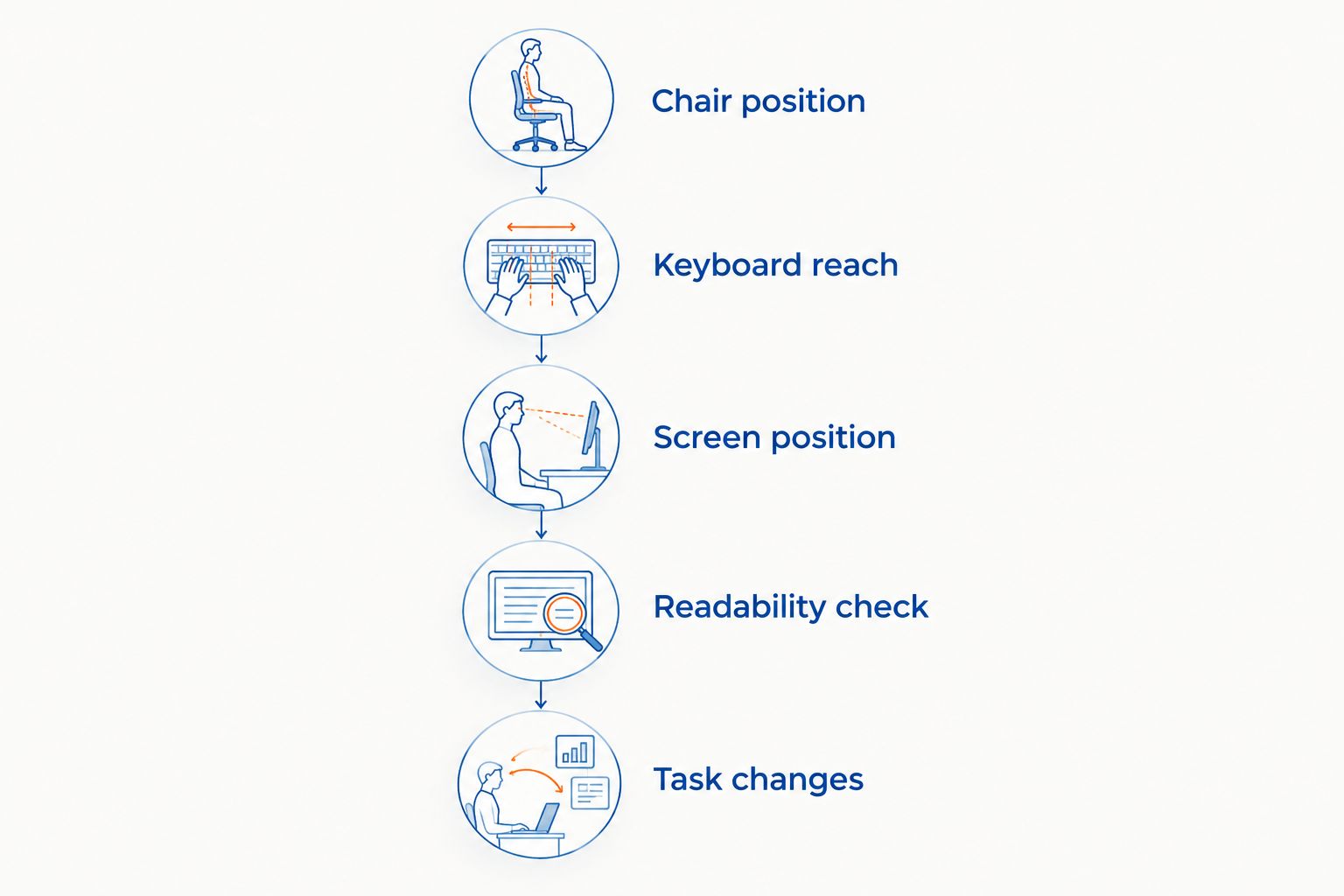
Use this sequence when checking a stand in 2026. Start with your sitting position, then place the controls and display around it—not the other way round.
Chair position
Adjust your chair so your feet have support and you can sit back comfortably. If the desk prevents a workable seated arrangement, a laptop stand alone cannot address that mismatch.
Keyboard reach
Place the separate keyboard and mouse close enough to use without repeatedly reaching forward. Keep frequently used controls within convenient reach and leave room to move the mouse.
Screen position
Place the display directly in front of you for your main task. General workstation guidance places the top of the screen at or below eye level, but glasses, screen size and the work you do can require a different arrangement.
Readability check
Check the actual documents you use. Increase text size rather than repeatedly moving your head towards small text, and reposition the screen if lighting creates distracting reflections.
Task changes
Leave room to change position and step away from the screen. No stand design makes it necessary to hold one rigid posture throughout the working day.
Measurements that help you compare stands
Record your workstation measurements before browsing equipment. The useful number is the height your screen needs to reach—not the maximum elevation printed on a product listing.
- Screen distance: OSHA's Computer Workstations eTool gives a general viewing range of about 50 cm to 100 cm. Use this as a starting reference, not a requirement to tolerate unreadable text.
- Elbow angle: The same guidance describes an elbow angle between 90 degrees and 120 degrees for keyboard work. Check this alongside relaxed shoulders and convenient control placement.
- Laptop dimensions: Measure the actual base width and depth in centimetres. A nominal display size does not describe the whole support surface.
- Desk clearance: Measure the space remaining for your keyboard and mouse after allowing for the stand or clamp.
Source context: OSHA, Computer Workstations eTool, monitor and keyboard guidance. These are general workstation reference points used in this 2026 guide, not measurements proving that a laptop stand changes pain outcomes.
Which laptop stand should you choose?
For a dedicated desk, start by considering a height-adjustable stand with a separate keyboard and mouse. Choose a folding design when transporting the setup is your main constraint, or a fixed riser when you have confirmed its height already works.
Before purchasing, check the manufacturer's dimensions, support limits and adjustment instructions. Avoid choosing equipment because its name promises posture correction or pain relief; those phrases do not establish whether it fits your workstation.
For readers considering a laptop stand for neck pain concerns, Mychiro's equipment guide separates desk fit from clinical assessment. Persistent, worsening or unexplained symptoms deserve discussion with a qualified health professional rather than repeated equipment purchases.
FAQ
Which laptop stand should I consider for neck pain concerns?
Consider a stand that fits your workstation and allows independent screen and keyboard placement. A height-adjustable design offers positioning choices, but it is not a treatment recommendation or a guarantee of symptom relief.
Do I need a separate keyboard with a laptop stand?
A separate keyboard is generally needed when you elevate a laptop for sustained typing. A separate mouse also lets you position your controls independently of the screen.
Is an adjustable stand more suitable than a fixed riser?
An adjustable stand suits changing screen positions; a fixed riser suits a workstation whose required height is already known. Compare their actual dimensions and support mechanisms rather than assuming either design fits everyone.
How high should my laptop screen be?
General workstation guidance places the top of the screen at or below eye level. Check readability and your usual tasks as well, because glasses and individual workstation requirements can change the arrangement.
Can a laptop stand prevent back pain?
A laptop stand should not be presented as a guarantee against back pain. It changes equipment positioning, while pain concerns require consideration beyond the stand itself.
Can I use a laptop stand on the couch?
Use a stand only on surfaces permitted by its manufacturer. A couch arrangement often lacks the stable support and separate input-device space available at a desk.
When should I seek medical advice instead of changing my desk setup?
Seek medical advice for persistent, worsening or unexplained neck or back pain. Urgent medical assessment is needed for symptoms such as new weakness, loss of bladder or bowel control, or pain after significant trauma; workstation changes should not delay assessment.
One last thing
Before choosing a stand in 2026, open the document you read most often and check its text size. If you still lean towards the screen, raising the laptop further is not automatically the right next step—check readability, distance and glare together.
Choose the arrangement around your actual work, not a product photograph. The keyboard, mouse and screen must work together; a stand cannot make those decisions for you.
Related guides
- Ergonomic keyboards and mice for workstation setup
- Ergonomic setups for shift workers
- Working on the couch with a laptop
- Lower back pain when sitting: practical steps